A month ago, my Lenovo laptop was restored to factory settings due to a hardware repair. Since getting it back, every time I press the Caps Lock key, a popup appears in the center-top of my screen saying either “Bloq Mayús inactivo” (inactive) or “Bloq Mayús activo” (active), as shown in this image:
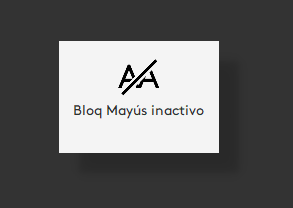
What I Have Already Tried:
I am using Windows 11 on a Lenovo laptop. The on-screen popup “Bloq Mayús inactivo” (Caps Lock inactive) or active when I press it again, appears every time I press the Caps Lock key. I have tried the following solutions:
- Standard Windows 11 Accessibility Settings:
Went to Settings > Accessibility > Keyboard and ensured “Filter Keys” is turned OFF.
Also in the same menu, ensured “Sticky Keys” is turned OFF.
Within the “Filter Keys” options, disabled “Show the Filter Keys icon on the taskbar” and “Display a warning message when turning a setting on”.
- Lenovo-Specific Software:
Checked Lenovo Vantage for any setting related to “Input Notifications,” “Keyboard Notifications,” or on-screen displays.
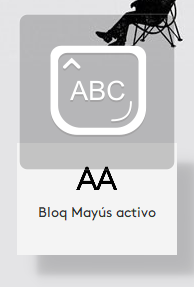
But the popup from lenovo is a different one that is already disabled. The lenovo popup(top) and the unknown popup(bottom):
- Registry Edits:
Opened Registry Editor (regedit) and navigated to:
HKEY_CURRENT_USERControl PanelAccessibilityKeyboard Response and set the “Flags” value to 0.
HKEY_CURRENT_USERControl PanelAccessibilityToggleKeys and set the “Flags” value to 0.
But all of this hasn’t fixed the issue.
If anyone could help it will be very useful bc I get a constant popup everytime I press it even inside games like valorant when trying to look at the full map where the Caps Lock button is used.