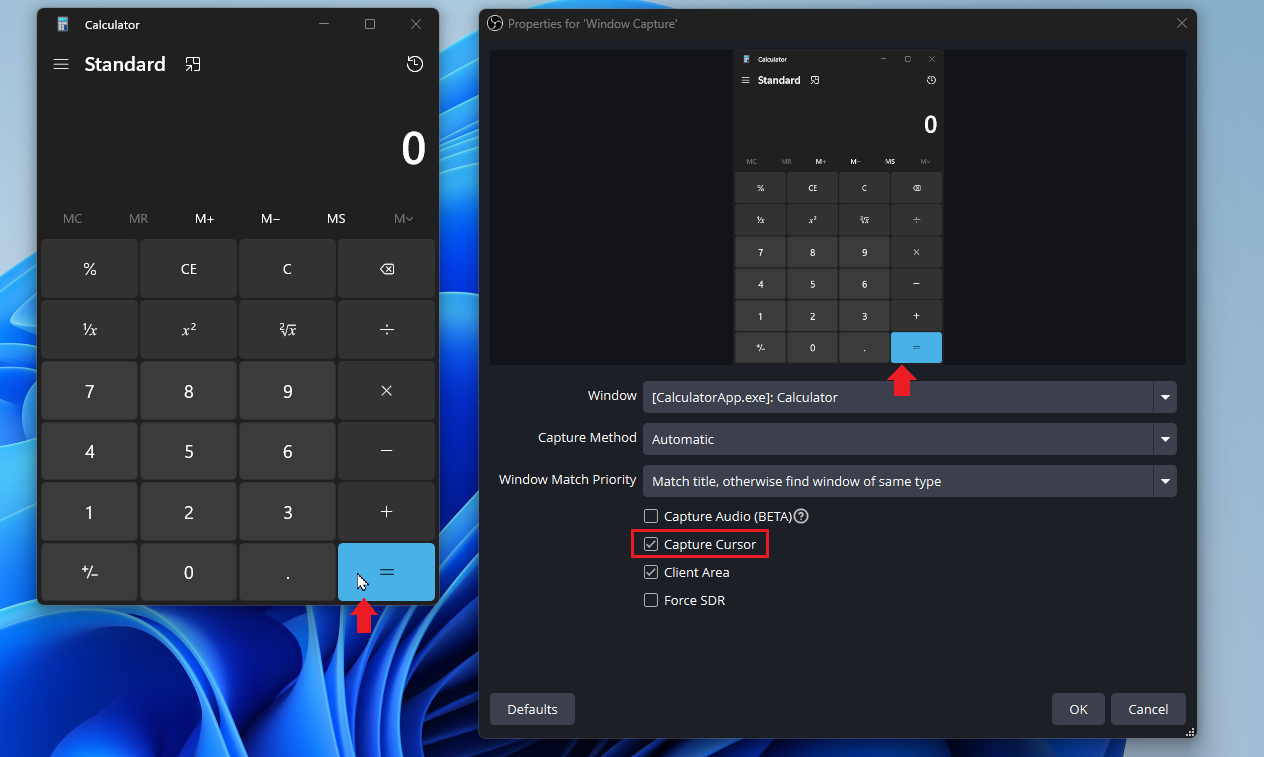
When using Window Capture in OBS with “Capture Cursor” enabled, my mouse cursor will only appear in OBS if the captured window is in focus. If the window is not focused, like when I’ve clicked on a different window beforehand, the cursor will not appear in the OBS preview or recording until the window is refocused.
Steps to reproduce
- Open OBS and an application to capture (for example, Calculator).
- Create a Window Capture in OBS.
- Enable “Capture Cursor” in the Window Capture properties.
- Select the application window you want to capture.
- Move the mouse cursor over the captured window without clicking on it.
System information
- Windows 11 Home 24H2 (Build 26100.7171)
- OBS Studio 32.0.2
Additional info
- Changing the capture method to BitBlt or Windows 10 does not resolve the missing cursor issue. However, if I increase the size of my cursor in the Win 11 accessibility settings, the enlarged cursor appears when using Windows 10 capture, but still appears small in BitBlt
- I tested with multiple applications like Google Chrome, Discord, and Calculator
- Sometimes when the capture window is changed in OBS, the mouse cursor will briefly appear in the preview before disappearing again.
Question
How do I make my mouse cursor appear when capturing a window in OBS, even if that window is not focused?